This guide walks through setting up the StreamRoll extension, StreamRoll For Chat!
0. Before you get started
StreamRoll for Chat is a way for a streamers chat to roll dice on their live stream. This is only available to users who log in with Twitch accounts. Users can customise dice rolls or roll specific configurations of dice. Bits can be used to upgrade rolls with advantage or disadvantage for example, or to roll a more complicated config.
Bit usage is 100 per upgraded roll or premium roll.
1. Install the extension
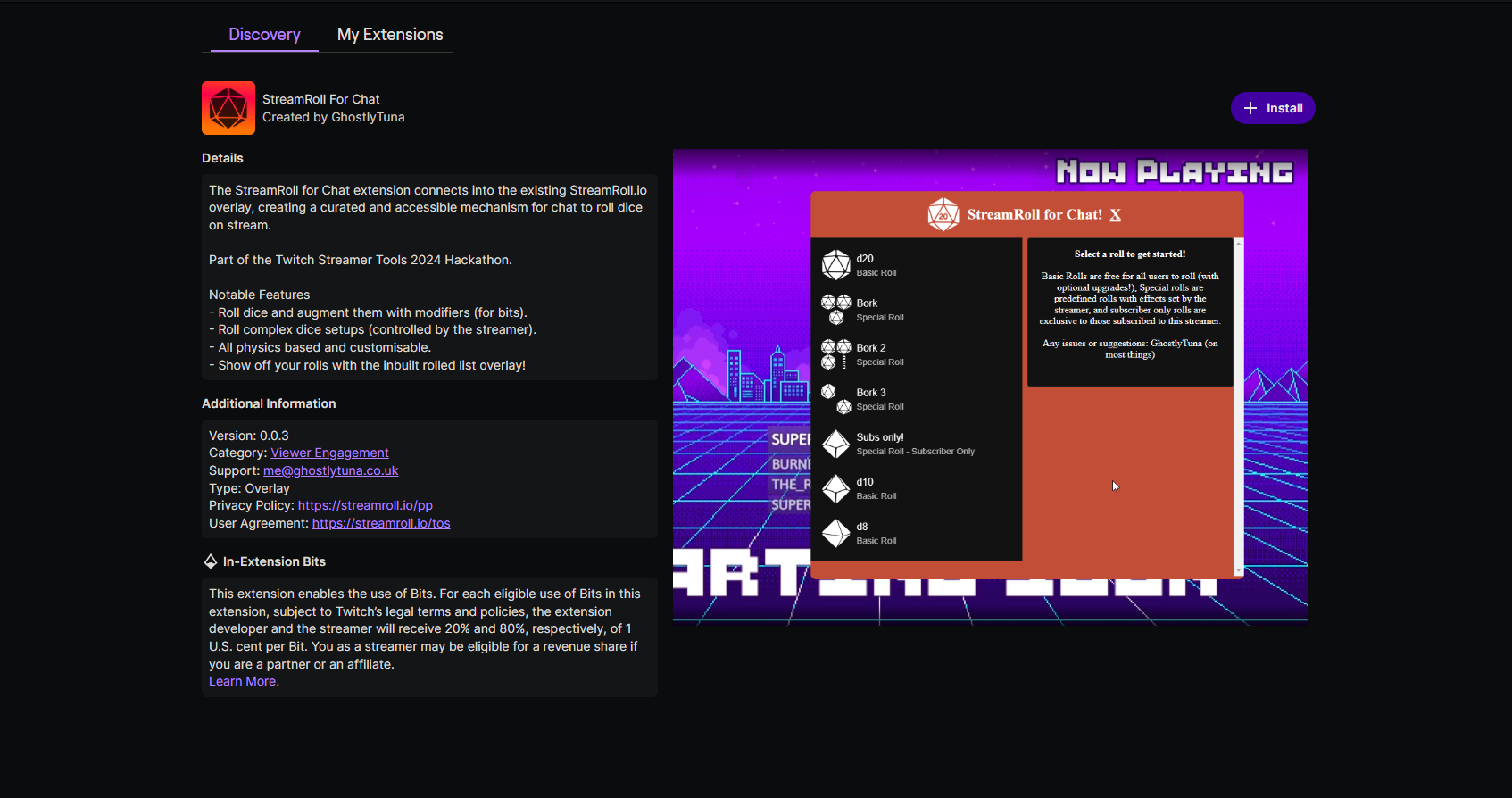
- Either search for StreamRoll for Chat in the Twitch Extensions section of the dashboard or check this link.
- Click Install.
2. Configure Dice Configs to appear on Twitch Extension
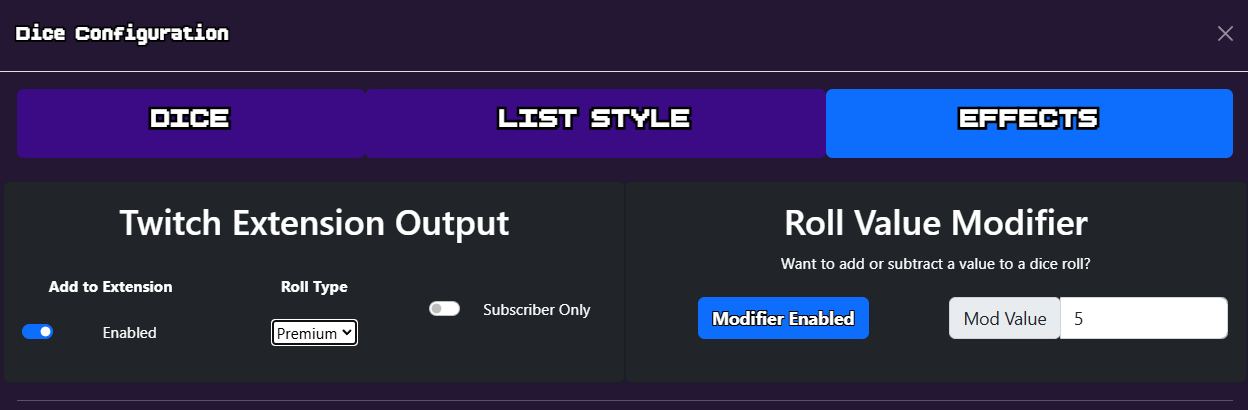
To add a dice config to the extension, first open up the effects section of a new or existing config.
There are two types of roll available, Basic and Premium:
-
Basic Singular die that can be colour customised and upgraded with bit usage.
-
Premium Rolls a config as designed on the website.
These configs can also be filtered to be subscriber only as you so wish.
3. Save Twitch enabled Config
Make sure your configs are up to date before checking the extension.
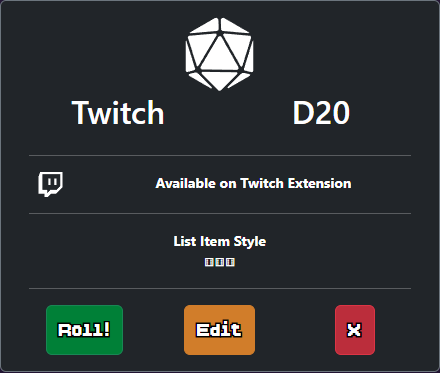
4. Check Extension setting to confirm configs are available.
Visit the configuration page on the Twitch extension to test if the configs were found.

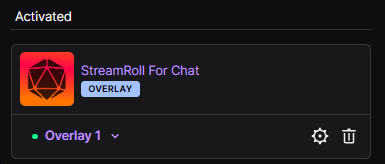
5. Enable the extension in your channel
Ensure the extension is set as an activated overlay in “My Extensions”.
6. Roll away!
Once live users can interact with the overlay on stream, ensure your overlays are visible in your streaming software to catch all the dice rolls!
Troubleshooting
- Extension not showing on stream:
- Verify the extension is installed and active in the correct slot.
- Actions do not trigger:
- Confirm account link is for the correct channel/user.
- Re-check permissions and re-authorize.
- Ensure dice rolling overlay is visible.